Running Google Ads without SEO is like driving with one headlight. You get some visibility – but you’re missing half the picture. Many businesses wonder how to add an SEO company to AdWords workflows so both channels reinforce each other.
This guide walks you through the exact steps. Moreover, it explains why combining both strategies is one of the smartest moves you can make for digital growth.
What Does “Adding an SEO Company to AdWords” Actually Mean?
Before diving in, let’s clarify the intent behind this question. It usually means one of two things:
- Granting an SEO agency access to your Google Ads account so they can align paid and organic strategies
- Integrating SEO insights into your AdWords campaigns to improve targeting, quality scores, and ROI
Both approaches are valid. In fact, they work best together. Understanding what SEO lead generation means helps you see how organic and paid traffic each feed your pipeline differently – and why aligning them matters.
Step 1: Grant Your SEO Company Access to Google Ads
The first step is giving your SEO partner the right level of account access. Google Ads has a built-in system for this.
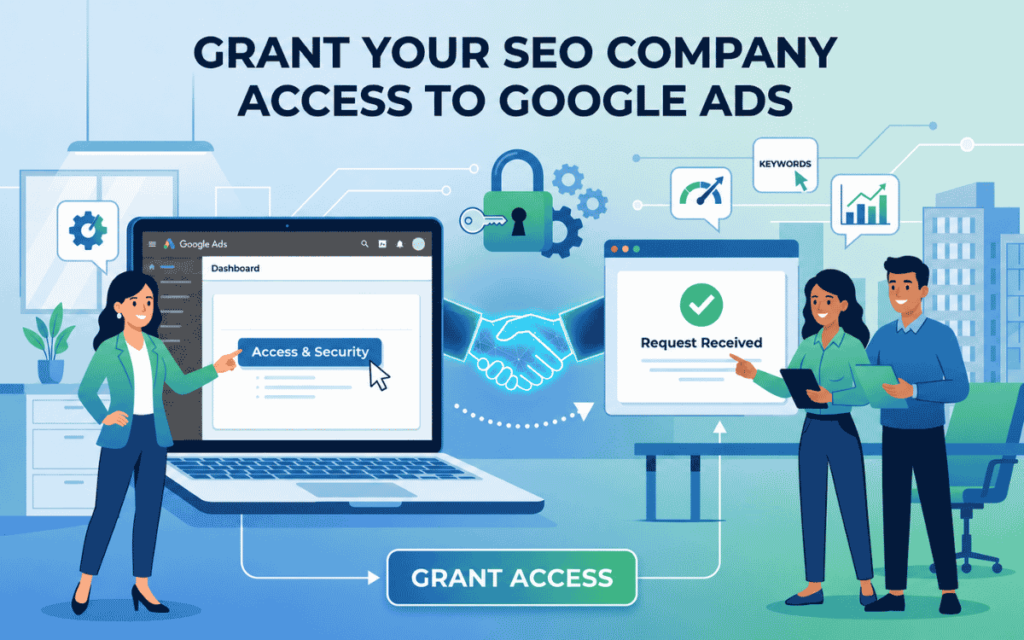
Here’s how to do it:
- Log into your Google Ads account
- Click the Admin icon (the gear/settings icon) in the top-right corner
- Select Access and security from the dropdown menu
- Click the blue “+” button to add a new user
- Enter the email address of your SEO company contact
- Choose the appropriate access level (Standard, Admin, or Read-only)
- Click Send Invitation
Your SEO company will receive an email invitation. Once they accept, they can log in using their own Google credentials and work within your account.
Access Levels Explained:
- Read-only – They can view campaigns and data but cannot make changes
- Standard – They can create, edit, and manage campaigns (most common for agencies)
- Admin – Full control, including adding or removing other users
Choose “Standard” access for most SEO and paid search teams. This gives them enough control to align keyword strategies without risking account-level changes.
Turn AI Visibility Into Real Revenue.
Automate Leads With SurgeAIO. Don’t Let AI Ignore Your Brand.
Step 2: Connect Google Search Console for SEO Data Sharing
Once your SEO company has Ads access, the next step is linking Google Search Console (GSC). This connection shares organic search data directly inside Google Ads. Therefore, both teams can see which keywords drive organic traffic and which ones you’re paying for.
To link GSC to Google Ads:
- Inside Google Ads, go to Tools & Settings
- Click Measurement, then select Search Console
- Follow the prompts to connect your verified GSC property
This integration reveals keyword overlap between paid and organic results. Your SEO company can then identify where SEO content can reduce your cost per click over time – a significant cost-saving advantage.
If you’re exploring whether SEO is an organic or paid strategy, this integration answers it clearly: SEO is organic, but it actively improves the efficiency of paid campaigns.
Step 3: Align Keyword Strategy Across Both Channels
This is where the real magic happens. When your SEO company works inside your AdWords account, they can see which paid keywords convert best. They can then build organic content around those same high-intent terms.
Key alignment tactics include:
- Using AdWords conversion data to prioritize SEO content topics
- Avoiding keyword cannibalization between paid ads and organic pages
- Testing new keyword variations via PPC before investing in long-term SEO content
- Using organic rankings to reduce ad spend on keywords where you already rank #1
Understanding how to outrank your competition on Google becomes much easier when you combine real paid-search data with organic strategy. Your SEO company brings the content expertise; AdWords brings the data.
Step 4: Use a Manager Account (MCC) if the Agency Manages Multiple Clients
If your SEO company manages multiple clients, they likely use a Google Ads Manager Account (also called an MCC – My Client Center). This is a central dashboard that lets agencies oversee many accounts from one login.
Here’s how to add your account to their MCC:
- Your SEO company sends you a link request from their Manager Account
- You receive the request inside your Google Ads account under Admin > Access and Security > Managers
- Review the request and click Accept
This approach is cleaner than sharing login credentials. Additionally, it gives the agency seamless access without compromising your account security.
Many digital marketing and SEO services operate this way. It is a professional, scalable method that protects both the client and the agency.
Step 5: Set Up Shared Reporting and Communication Workflows
Access alone isn’t enough. Your SEO company and your paid search team need to communicate regularly. Therefore, establish a shared reporting workflow from day one.

What to track together:
- Organic vs. paid traffic by keyword
- Conversion rates for both channels
- Quality Score improvements driven by SEO landing page optimization
- Top-performing ad copy that can inform SEO meta descriptions
- Keyword gaps where neither organic nor paid is performing well
Turn AI Visibility Into Real Revenue.
Automate Leads With SurgeAIO. Don’t Let AI Ignore Your Brand.
Using tools that track content performance data helps both teams make faster, better decisions. A weekly sync call and a shared dashboard reduce duplication and improve ROI across both channels.
Why Combining SEO and AdWords Delivers Better Results
Businesses often treat SEO and Google Ads as separate budgets and separate teams. However, the data clearly shows a combined approach outperforms either channel alone.
Here is why:
Immediate traffic + long-term authority: AdWords delivers traffic from day one. SEO builds sustainable visibility over months. Together, they cover the full customer acquisition timeline.
Quality Score improvement: Well-optimized landing pages – built with SEO best practices – directly improve your Google Ads Quality Score. A higher Quality Score lowers your cost per click. This means SEO literally saves you money on paid search.
Keyword intelligence: AdWords data shows exactly which keywords trigger conversions. Your SEO company can use that information to write targeted blog posts, landing pages, and service pages. This creates a feedback loop that continuously improves both channels.
Brand trust: Users who see your brand in both paid ads and organic results develop stronger brand recall. They are more likely to click and more likely to convert.
If you’re still wondering whether you need to hire an SEO company at all, the combined AdWords approach is one of the clearest use cases. It multiplies the return on your paid ad investment rather than replacing it.
Common Mistakes to Avoid
Even with access granted and strategies aligned, some teams still fall short. Here are the most common pitfalls:
- Not sharing keyword data – Keep both teams informed about what’s working in each channel
- Competing on the same keywords – Bidding on paid ads for keywords you already rank #1 organically wastes budget
- Ignoring landing page experience – A bad landing page hurts both your organic rankings and your Quality Score
- Siloed reporting – If SEO and paid are tracked separately, you’ll miss the combined attribution picture
- Giving Read-only access – This limits what your SEO company can actually do inside the account
Many of these mistakes come down to poor coordination. Knowing how to compare brand visibility across platforms helps you spot gaps before they become costly.
How SurgeAIO Can Help in Terms of SEO
If you want to integrate SEO and paid search strategically, SurgeAIO is built for exactly that.
SurgeAIO is an AI-powered SEO and visibility platform. It helps businesses track keyword performance, measure content effectiveness, and understand how their brand appears across both traditional search engines and AI-driven results.
Here’s what SurgeAIO brings to the SEO + AdWords equation:
- AI-powered keyword insights to identify high-ROI opportunities across both channels
- Content optimization tools that improve landing page quality – directly benefiting your AdWords Quality Score
- AI visibility tracking to see how your brand appears in AI Overviews and generative search results, not just traditional Google results
- Competitor benchmarking to understand where your paid and organic presence falls short versus rivals
- GEO and SEO reporting in one unified dashboard, so your SEO company and paid search team share the same data layer
Turn AI Visibility Into Real Revenue.
Automate Leads With SurgeAIO. Don’t Let AI Ignore Your Brand.
Moreover, SurgeAIO’s platform supports best practices for AI visibility SEO, which is increasingly important as Google Ads and AI-powered search results overlap. As search behavior shifts, having a platform that tracks both traditional and AI-driven visibility gives your business a genuine edge.
Whether you’re a small business adding an SEO company to your AdWords account for the first time, or a scaling brand looking to unify your digital strategy, SurgeAIO gives you the tools and intelligence to do it right.
Final Thoughts
Knowing how to add an SEO company to AdWords is more than a technical task. It’s the first step toward building a unified digital marketing engine.
When SEO and paid search teams share access, data, and strategy, they reduce waste and amplify each other’s results. Organic content improves Quality Scores. Paid data sharpens SEO targeting. Together, they deliver better leads at a lower total cost.
The businesses that grow fastest online are not the ones spending the most on ads. They are the ones connecting every piece of their digital strategy – and letting each channel make the others stronger.
Frequently Asked Questions
Q1: Can I give my SEO company access to AdWords without sharing my password?
Yes. Use Google Ads’ built-in user management system. Go to Admin u003e Access and Security and invite your SEO company via their email address. They will use their own Google login credentials to access your account.
Q2: What access level should I give an SEO agency in Google Ads?
Standard access is recommended for most agencies. It allows them to create and edit campaigns, view data, and align paid strategy with SEO – without giving full administrative control of your account.
Q3: Does SEO actually improve Google Ads performance?
Yes, directly. Better-optimized landing pages improve your Quality Score in Google Ads. A higher Quality Score lowers your cost per click and improves your ad rank. SEO-driven content improvements therefore reduce your paid search spend over time.
Q4: What is an MCC account and do I need one?
An MCC (Manager Account) is a Google Ads feature for agencies managing multiple client accounts. If your SEO company operates this way, you simply accept a link request inside your Google Ads account. It is cleaner and more secure than credential sharing.
Q5: How long does it take for combined SEO and AdWords efforts to show results?
AdWords delivers traffic almost immediately. SEO results typically build over 3–6 months. However, the synergy benefits – such as better Quality Scores and keyword intelligence – start showing up within the first few weeks of alignment.
Q6: Should my SEO company manage my Google Ads too?
Not necessarily. Some SEO agencies also offer paid search services; others specialize in organic only. The most important thing is that both teams have access to shared data and communicate regularly. Whether it’s one agency or two, coordination is the key.
Q7: Is it safe to give an SEO company access to my Google Ads?
Yes, as long as you use the standard Google Ads invitation system rather than sharing your account password. You can revoke access at any time from the Access and Security settings panel.
